7.0 - Last modified on 2022-06-24 Revised by Amy Li
6.0 - Last modified on 2021-07-14 Revised by Kathleen McLeod
5.0 - Last modified on 2021-07-14 Revised by Amanda Wagner
4.0 - Last modified on 2021-01-28 Revised by Amanda Wagner
3.0 - Last modified on 2021-01-12 Revised by Amanda Wagner
2.0 - Last modified on 2020-11-19 Revised by Amanda Wagner
1.0 - Created on 2020-11-13 Authored by Amanda Wagner
Recording a Teams Meeting
Note: Make sure you let everyone on the call know they are being recorded.
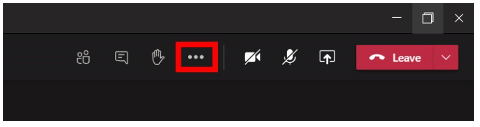
- In the top right corner, click on the three dots.
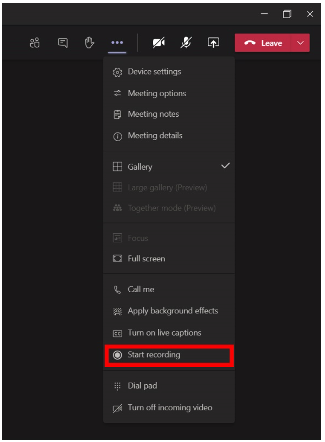
- Select Start Recording from the menu that appears.
- You will get a notice at the top of the call stating that you are recording.

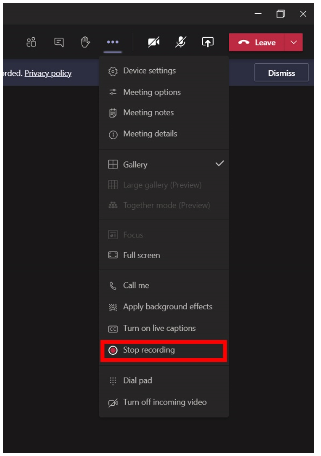
- Once the meeting is done, click the three dots and select Stop Recording from the menu.